Featured Collections are displayed on the Front Page. They are a great way to direct users to the most relevant, important or frequently-used collections of assets. You can feature a single Collection, or an entire Library. To create a featured collection follow the instructions below.
Note: When you make a new Collection "Featured Collections" is disabled by default.
Make a Featured Collection
- Locate the Collection you would like to feature.
- Mouse over the
 Info pop-over next to its name.
 - Click
 in the upper left corner of the info pop-over. This will open the Collection's Management Panel.
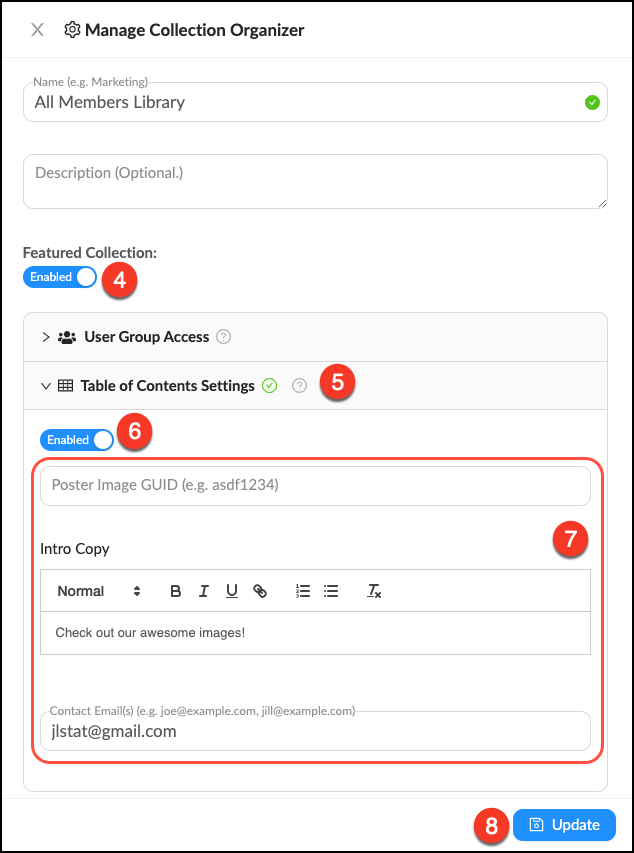
 - Enable the Featured Collection toggle.
- Click the accordion Table of Contents Settings.
- Click the toggle to enable the Table of Contents.
- Add a poster image, introduction and display contact emails.
- Click Update.
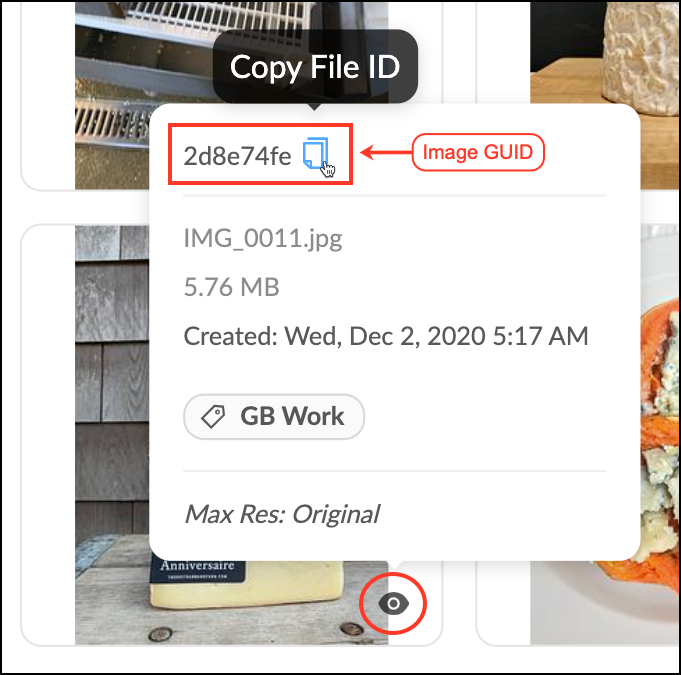
Once you’ve enabled the Table of Contents, follow these steps to add a Poster Image to your collection.
Add a Poster Image
To add a poster image just copy and paste the desired image’s GUID (Globally Unique Identifier) into the poster image field in the Manage action menu.
- Locate the image you would like to be the Poster Image for your Featured Collection.
- Mouse over the
 in the lower right corner of the image.
 - Click the
 in the upper left corner of the popup to copy the image GUID.
 - Go into the panel of the Collection.
- Paste the GUID into the Poster Image field.
- Click Update.