Duplicate to Collections

Duplicate to Collections

To share a Folder or Organizer with different groups or members it needs to be turned into a Library Collection. 

This is an easy way to share content to different groups, while preserving organizational structure.

Duplicate to Collections

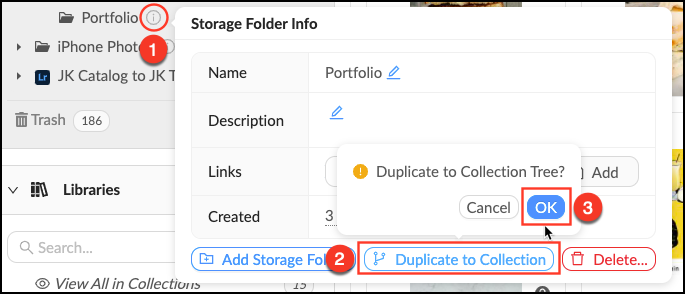
  • Mouse over the info_popup.png Info pop-over next to the Folder or Organizer you’d like to duplicate. 
  • Click Duplicate to Collection.
  • Click OK.
  • Scroll down to the Libraries panel to see your new collection.
Duplicate_to_Collection.png


    • Related Articles

    • Duplicate a Folder to Collections

      Who can use this feature? Admins and Content Managers Available on all plans All account assets are uploaded into Folders in the File Vault where they are organized and prepared for distribution by Admins and Content Managers. The quickest way to ...
    • Creating Collections

      2 years ago Updated Follow Not yet followed by anyone To create a collection: Select one or more assets in the asset feed. Open the left sidebar and click on "Create collection". Type the name of the collection and press Enter. You can create several ...
    • Deleting Collections

      2 years ago Updated Follow Not yet followed by anyone To delete a collection, do the following: Select one or more collections from the collection feed. At the bottom of the screen, you will see the bulk actions panel. Press Delete. Once a collection ...
    • Sandbox Collections

      Who can use this feature? Admins, Content Managers, Library Managers and Taggers can see Sandboxes. Available on all plans When you make a Group you have the option of creating a Group Sandbox. Sandboxes are Collections that can only be accessed by ...
    • Sorting Assets and Collections

      4 years ago Updated Follow Not yet followed by anyone How assets/collections are sorted affects the order in which they are displayed in the feed. The sorting method is selected using the Sort switch under the search bar. Both assets and collections ...