Duplicate a Folder to Collections
All account assets are uploaded into Folders in the File Vault where they are organized and prepared for distribution by Admins and Content Managers. The quickest way to share a Folder or Folder Tree with general members is to duplicate it to a Collection. This can be done with a single click in the File Vault.
Duplicate a Folder to Collections
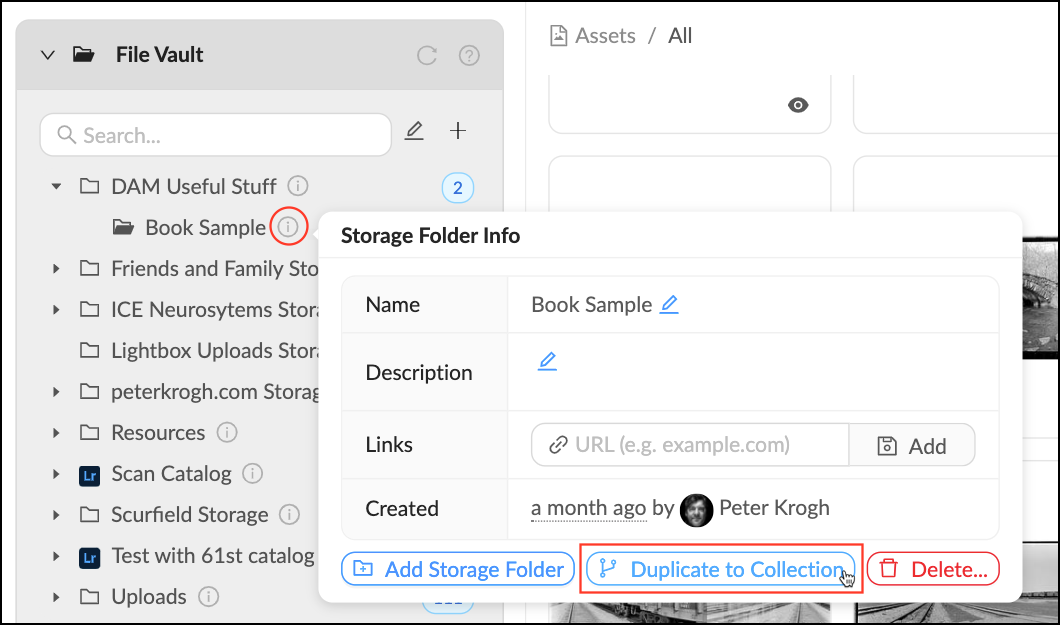
- Locate the Folder you would like to duplicate to a Collection. Mouse over the
Info pop-over next to the Folder name. - Click "Duplicate to Collection".
- Click "OK".
- Refresh Libraries Panel to see your new Collection.
Next Steps
The new Collection will appear as a top-level Collection with no permissions. Collections without any assigned permissions are not visible to any non-staff members. Follow the below links to learn how to apply permissions:
- Quickly apply permissions by moving the Collection into an existing Library Tree.
- Go into the Collection's management panel to apply Group permissions.
Related Articles
Duplicate a Folder to Collections
Who can use this feature? Admins and Content Managers Available on all plans All account assets are uploaded into Folders in the File Vault where they are organized and prepared for distribution by Admins and Content Managers. The quickest way to ...
Duplicate to Collections
To share a Folder or Organizer with different groups or members it needs to be turned into a Library Collection. This is an easy way to share content to different groups, while preserving organizational structure. Duplicate to Collections Mouse over ...
Using Auto-add to Collections
The auto-add feature allows you to automatically add files to a collection from a designated Folder, Collection or Lightbox. This is useful for making files accessible to different groups automatically. Auto-add for Group Uploads The auto-add feature ...
Create a Folder
Folders are the foundation of your storage, they contain files and other folders. Every file in your account lives in a Folder, all assets are uploaded directly into Folders. Follow these steps to make a new Folder. Make a new Folder Mouse over the + ...
Delete a Folder
When a Folder is no longer needed or if you need to start over you can delete it by following these steps. Please note that deleting a Folder cannot be reversed and its contents will be moved to the trash. So make sure that the Folder can be safely ...