Create a Project

Create a Project

Projects are for storing and managing multiple related Lightboxes. By default, Lightboxes created inside of a Project inherit all the settings from the Project, you can override parent settings if you wish. 

Projects are most useful for work that would benefit from having multiple related containers (e.g. images for different chapters in a book, or a multi-step approval process).

If you know you want some settings (like invited members or upload permissions) to apply to all of the Lightboxes inside a Project, make those settings before you create the Lightboxes. 

Create a Project

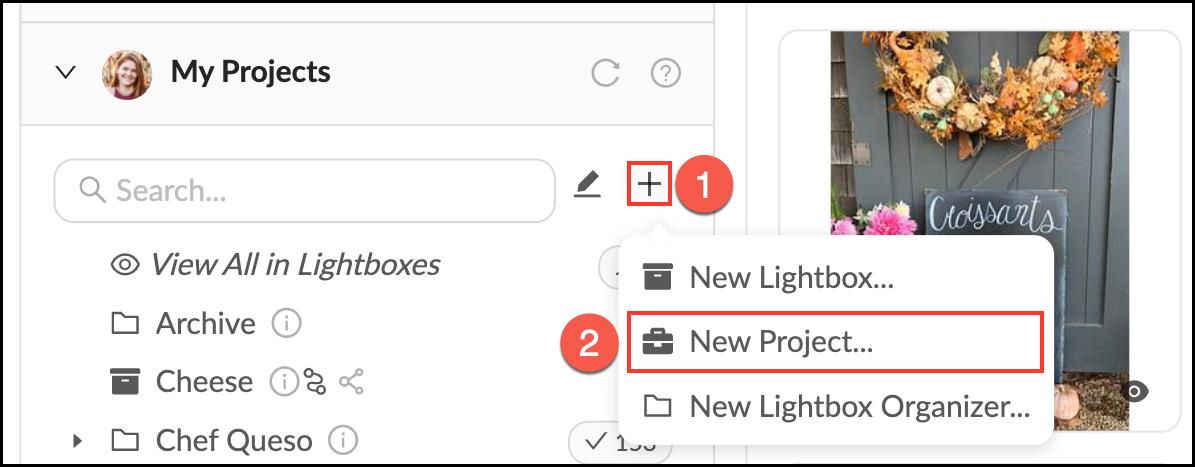
  1. In the My Projects panel, mouse over the + next to the search bar.
  2. Click New Project…
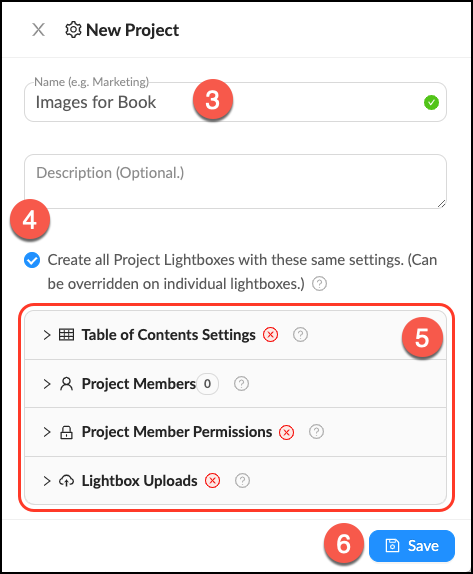
  3. Give your new Project a name.
  4. Make sure the box "Create all Project Lightboxes with these same settings" is checked.
  5. You have the option to add a table of contents, invite members to your project and enable member uploads (depending on your role and organization settings). 
  6. Click Save.

Create_Project.png


Create_Project_2.png


    • Related Articles

    • Edit a Project

      If you need to make a name change or otherwise update a Project, you can do so by following these steps. If you edit a Project's settings, they will NOT automatically be applied to existing Lightboxes within the Project. Changes will only be applied ...
    • Share a Project

      There is only one way to share a Project: invite specific people to the Project. You can invite people who are already members of your Mediagraph organization, or invite new people. If you invite someone who is not a member of your Mediagraph ...
    • Create a Lightbox

      A Lightbox is a personal tool that allows users to organize Mediagraph content based on their own project needs. The person who makes the Lightbox is the “owner” and controls the settings. They can add files to their Lightbox, invite other members to ...
    • Create a Lightbox Organizer

      Lightbox Organizers allow you to manage your Lightboxes and Projects just like folders do on your computer. Organizers can hold other organizers, which is helpful once you have created a lot of Lightboxes. You can rearrange these at any time. Note ...
    • Create an Organizer

      To aid in visual organization, we’ve added Organizers as a way for Administrators or Content Managers to further categorize their top-level view. Assets cannot be uploaded directly into Organizers, they are for visual organization only. Create an ...