For general access
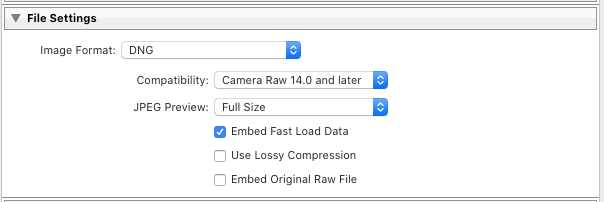
In most cases a full-size-full-quality sRGB JPEG will be the right file to upload.
- A well-prepared JPEG file is fine for most reproduction purposes, either in print or on the web. High-quality JPEGs and visually indistinguishable from 8-bit TIFFs, and take up much less space. sRGB is the color profile most likely to be reproduced correctly in the largest number of workflows. However, it does make some compromises on the full range of color that it can reproduce.
For general print production
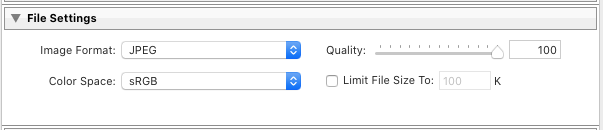
You get slightly higher color quality by uploading a full-size-full-quality AbobeRGB (1998) JPEG.
- The Adobe color space is larger than sRGB, so it has the capability to display more colors. However, it requires a color managed workflow or the colors will look dark and flat.
For very high quality print use
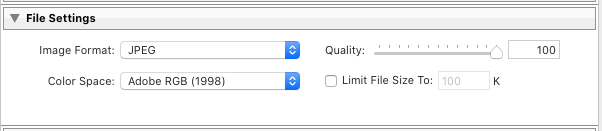
Use a 16 bit TIFF in AdobeRGB or ProPhoto color space.
- A small percentage of print processes can make use of the extra data in a 16-bit file, along with the wider color space. Usually, these will be labeled as “museum quality prints” or similar. PSD and TIFF are the only two formats to use for 16-bit files.
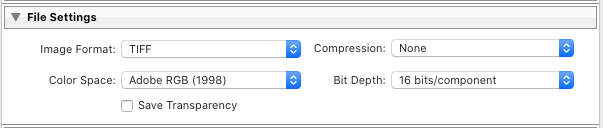
For layered master files that may need further editing
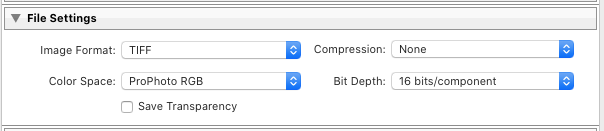
Use the original file (usually a TIFF).
- If you are storing or passing along master files and want to keep the full editability, you’ll want to upload the Original File. In most cases, it’s best to use TIFF for this, as it is more likely to be compatible with different web services and editing software. PSD files may not render correctly if they were not saved with “Maximize Compatibility.”

For raw photos
Use DNG.
- If you need to upload an editable raw file to your MediaGraph account, DNG offers several advantages. The primary one is that a DNG file edited in Lightroom, and saved with a full-size embedded preview, will show the Lightroom adjustments the same as a JPEG or TIFF would.
- Proprietary raw files like NEF, CR2 and ARW that have been edited in Lightroom will appear unedited when viewed outside of Lightroom.