Add a Group Tagger

Add a Group Tagger

Group Taggers allow you to share the burden of tagging assets without giving a user full control of a Group's assets. They can create and assign tags to assets in the Group Library and Sandbox.

Group Taggers permissions

Add Group Taggers

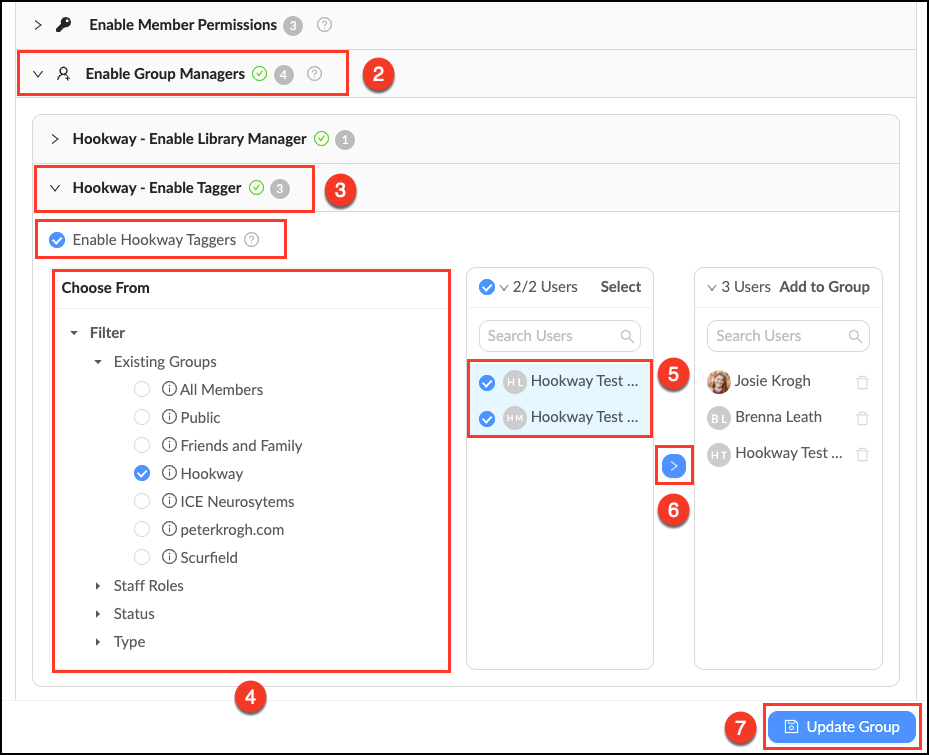
  • Go to Manage > Groups and click Edit next to the desired Group.
  • Click the accordion labeled Enable Group Managers.
  • Click the accordion labeled Group Name - Enable Tagger. Make sure the "Enable Group Taggers" box is checked.
  • Use the filters to narrow displayed users to select from.
  • Select members you would like to make Group Taggers.
  • Click the blue_arrow.png blue arrow to add these Group Taggers.
  • Click Update Group to save changes.

Enable_Group_Tagger.png


    • Related Articles

    • Group roles overview

      In addition to global roles Mediagraph also supports group based roles for members and staff. This allows the group’s content and members to be managed by someone who does not have full control over the entire account. Group roles include: Group ...
    • Mediagraph permissions by Group role

      Group managers allow you to share the burden of management of the account as other departments, stakeholder groups or other sets of members are brought onboard. This chart breaks down permission by Group role. Enabled by default Can be enabled by a ...
    • Add a Group Library Manager

      Group Library Managers allow a Group’s content and members to be managed by someone who does not have full control over the entire account. Group managers allow you to share the burden of management of the account as other departments, stakeholder ...
    • Add members to a Group

      You can add members to a Group when you first create a Group, or go back into Group Management and add members later. Adding a member to a Group will give them access to all Group Libraries and Group contribution requests. There are several ways to ...
    • Group overview

      Groups are the heart of permission control in Mediagraph. They connect members to assets through permissions that are applied to collections. All accounts come populated with two “automatic” groups: All Members and Public. These are useful for ...