View and Download Permissions for Collections

View and Download Permissions for Collections

Mediagraph enables you to pick which user Groups can see or download your Collections through Permissions. Permissions allow you to control access to assets according to a person’s Group membership. Access permissions are created in the Group Manager and those permissions can be assigned to a Collection TreeTo learn more about how Permissions work, read below.

Create Permissions


Permissions are first created in Manage>Groups. You can enable specific access Permissions in the Group settings, and these Permissions can be applied to a Collection Tree. You can make Permissions for Public Access, All Members, and/or specific Member Groups.

Group permissions are applied to Collections to determine what assets Group members have access to. All Groups come with six default permissions levels to choose from. When creating a Group you can select from these default permissions, edit them or create a custom permission level.

Note: Enabling permissions in Group settings makes them available to apply to a Collection, it does NOT actually apply the permission level anywhere in Mediagraph

Default Permissions Levels

All Groups come with six default permission levels to choose from (permissions in bold are enabled by default):
  • View Only - Small Watermarked
  • View Only - Medium
  • View Only - Full Size
  • View and Download - Medium
  • View and Download - Full Size
  • View and Download - Original File

Options to Customize a Permission Level

  • Enable/disable watermarks
  • Give members permission to download assets
  • Choose what size image Group members can see/download - 640, 1200, Full-Size or Original
  • Choose what size video Group members can see/download - 480p, Full Size or Original
  • Choose what size audio file Group members can see/download - Listen Only or Original

  • Permissions_overview.png

If you find that you need to add or modify a Group's permissions levels you can edit the existing Permissions. (For instance, you may want to remove a watermark from an existing permissions level).

Add or Modify Group Permissions

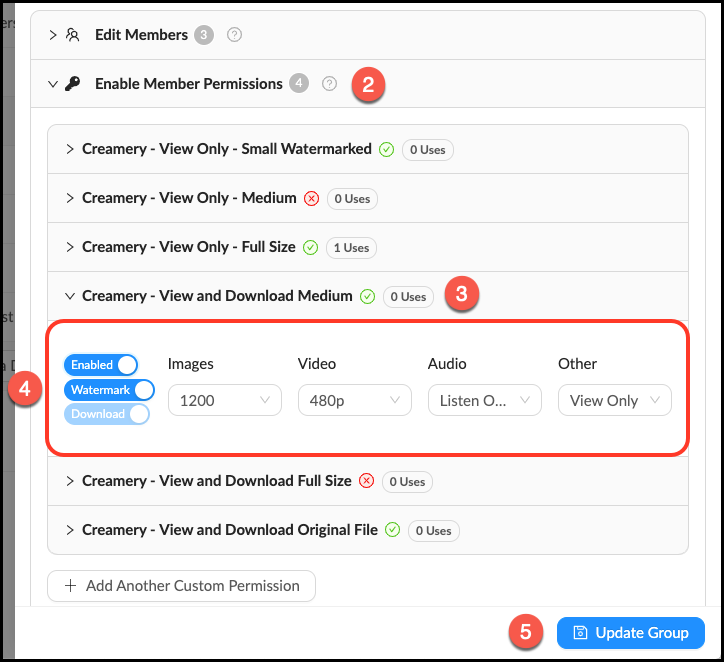
  • Go to Manage > Groups and click Edit next to the desired Group.
  • Click the accordion labeled Enable Member Permissions.
  • Click the accordion of the permissions level you would like to edit. There are six standard levels, but you can also create a custom permissions level.
  • Make desired changes. You can enable/disable watermarks, the ability to download assets and change the size of images users can view/download.
  • Click Update Group to save changes.
Edit Group Permissions Level.png

Create a Custom Group Permission

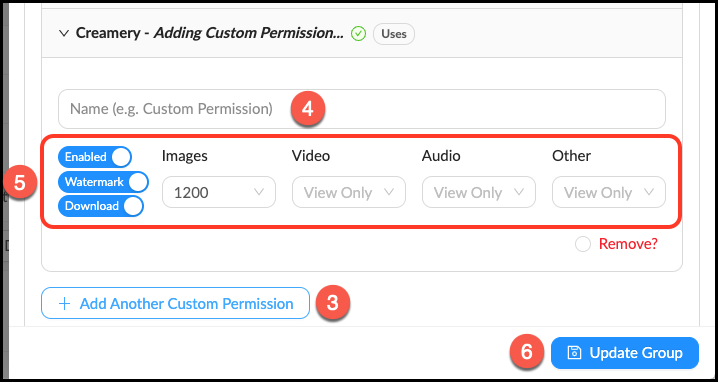
  • Go to Manage > Groups and click Edit next to the desired Group.
  • Click the accordion labeled Enable Member Permissions.
  • Click + Add Another Custom Permission.
  • Name your new Permission Level.
  • Select desired attributes.
  • Click Update Group to save changes.
Create Custom Permission.png

Assign Permissions

    If a Collection has no assigned Permissions, it will only be visible to the Account-wide taggers and Managers. No Members will be able to see or download the files.

    Once Permissions have been created in the Group Manager, you can assign them in a Collection’s Manage panel. Start with a top-level Collection or Organizer and assign Permissions for a Group. This will allow the Group members to see or download the assets in the Collection. By default, this Permission will be inherited by all Sub-Collections. We strongly encourage you to use Children Inherit for all your Collection trees. 

    Pro Tip: Managers can also allow access to files for specific people in Lightboxes. 

    Mediagraph enables you to pick which user Groups can see or download your Collections through Permissions.

    Follow these steps to give members permission to see or download based on their Group membership. 


    View_and_Download_Permissions.png


    Set Member Permissions in Existing Collections

    1. Locate the Collection and mouse over theInfo_Popup.png Info pop-over next to its name.
    2. Click the Manage_Button.png button to enter the Manage Panel.
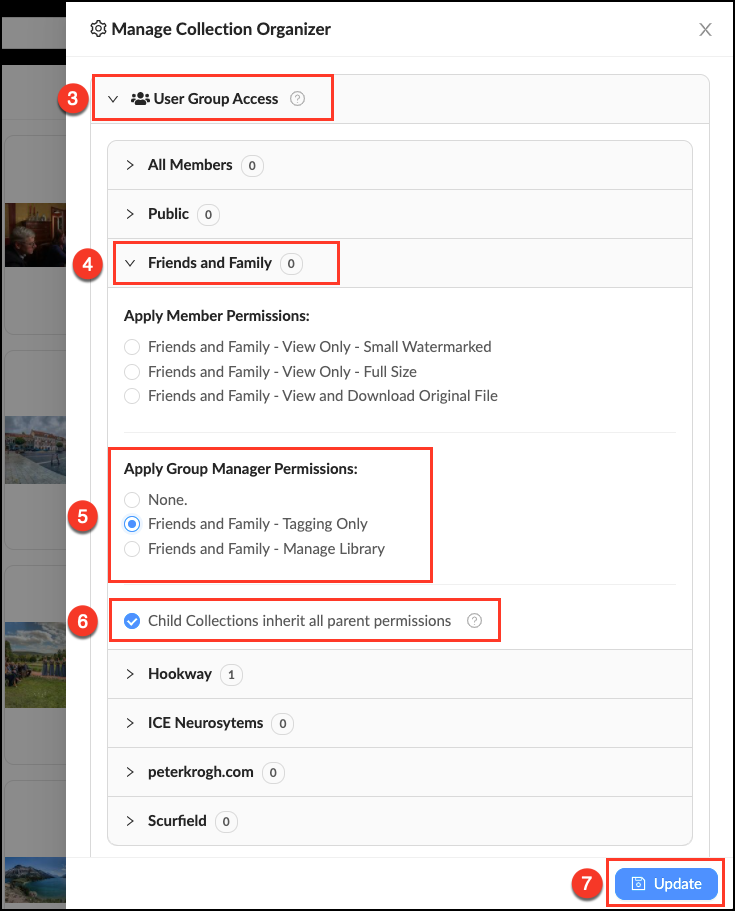
    3. Click the accordion labeled User Group Access (all groups within your organization are listed here).
    4. Click the tab of the Group you’d like to give permissions to.
    5. Click the checkbox next to a Permission Level to grant view or download access. In nearly all cases, there is no need to select more than one permission per group.
    6. Confirm that "Child Collections inherit all parent permissions" is checked. 
    7. Click Update to save changes.

    Pro Tip: All Groups are created with the same default Permission Levels (View Only - Small Watermarked, View Only - Full Size, and View and Download Original File). To edit or create custom Permission Levels for a Group go into the Manage > Groups tab to edit Group Permissions options.


    • Enabling Group Tagging permissions gives those Group Taggers the ability to create and apply tags to all assets in that Collection. 
    • Enabling Group Library Manager permissions on a Collection gives those Group Library Managers control over Collection structure, permissions and assets.
    • There is not an option to specifically apply Group Content Manager permissions. Enabling Group Library Manager permissions will grant those Group Content Managers control over Collection structure, permissions and assets, but will not grant any additional access to the File Vault.
    Warning:
    We do not recommend giving one Group's staff managing permissions over another Group's Library. Instead, we recommend making the user a Global Library Manager or adding them to the other Group as a Library Manager. 


    Global staff roles have c

    This is generally reserved for a Groups "Home" Collection. In order to enable admins in a Collection you must enable Group Managers

    Follow the steps below to enable Group staff permissions on an existing Collection.

    Apply Staff Permissions in a Collection

    • Locate the Collection and mouse over the Info_Popup.pngInfo pop-over next to its name.
    • Click the Manage_Button.pngbutton to enter the Manage Panel.
    • Click the accordion labeled User Group Access (all groups within your organization are listed here).
    • Click the tab of the Group you’d like to give managing permissions to.
    • Under Apply Group Manager Permission check the box of the admin permission you would like to enable. Note: selecting "Manage Library" will also apply "Tagging" permissions.
    • Confirm that Child Collections Inherit is checked.
    • Click Update to save changes.
    Set_Admin_Permissions.png

      • Related Articles

      • Permissions by Role

        Admin Content Manager Library Manager Tagger Member Upload assets to the File Vault Upload assets to Lightboxes Duplicate Folders to Collections Manage all Library Collections View Sandbox Collections View NSFW content Enable auto-tagging Edit ...
      • How to Download Assets

        Mediagraph users can download assets according to the permissions granted to them, from a low-resolution watermarked version up to an original file. Admins and Global Content Managers can also download a folder tree, preserving all contained folder ...
      • Change Asset View Sort Order

        Mediagraph defaults to sorting assets by Uploaded Time > Newest First, but there are many other ways to sort assets when viewing them in the Workspace. To change the way assets are sorted, mouse over the sort order arrows and select from the ...
      • Sandbox Collections

        Who can use this feature? Admins, Content Managers, Library Managers and Taggers can see Sandboxes. Available on all plans When you make a Group you have the option of creating a Group Sandbox. Sandboxes are Collections that can only be accessed by ...
      • Duplicate a Folder to Collections

        Who can use this feature? Admins and Content Managers Available on all plans All account assets are uploaded into Folders in the File Vault where they are organized and prepared for distribution by Admins and Content Managers. The quickest way to ...