Using Auto-add to Collections

Using Auto-add to Collections

The auto-add feature allows you to automatically add files to a collection from a designated Folder, Collection or Lightbox. This is useful for making files accessible to different groups automatically. 

Auto-add for Group Uploads

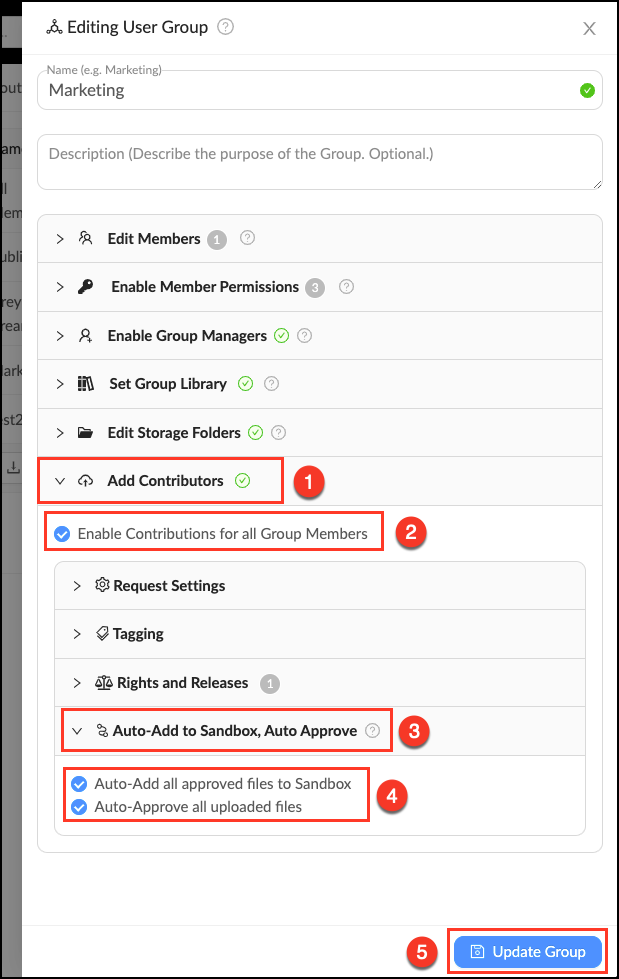
The auto-add feature is found in the Group Contributions settings. It is enabled by default when Group contributions are enabled.

  • Go to Manage > Groups and click "Edit" next to the desired Group.
  • Open the tab "Add Contributors".
  • Check the box to enable contributions from all Group members.
  • Click the tab "Sandbox Workflow".
  • Check the box to automatically route all Group uploads to the Group Sandbox.
  • Click "Update Group" to save changes.

Auto-Add_for_Group_Uploads.png


Auto-add in Workflows

Workflows allows you to automatically add files from a designated source container (Folder, Collection or Lightbox) to a designated destination container (Collection or Lightbox). Follow these steps to make a Workflow.

  • Click Workflow in the upper left corner to enter the Workflow Tab.
  • Click "+ Add New Workflow" in the upper right corner.
  • Give your new Workflow a name and description (optional).
  • Select the desired source container (Folder, Collection or Lightbox).
  • Give Step One a name (optional).
  • Select if you would like forwarding to be automatically or manually approved.
  • Select the destination container (Collection or Lightbox) you would like files to flow into.
  • Click "Save Workflow".

Create_a_Workflow_2.png


    • Related Articles

    • Add Files to a Collection

      A Collection can be expanded or updated by adding more assets at any time. There are multiple ways to add files Collections. Drag and Drop - Simply drag selected files from the workspace onto a Collection to add them. Using the Action menu - ...
    • Using a Workflow

      Think of a Workflow as automatic forwarding from one container in MediaGraph to another. If you create a Workflow so assets are auto-approved to forward from one container to the next, every time you add an asset to the source container, it will ...
    • Configuring OpenID Authorization Using GSuite

      4 years ago Updated Follow Not yet followed by anyone OpenID is an open standard of a decentralized authentication system that allows the user to create a single account for authenticating to multiple unrelated Internet resources. To set up OpenID ...
    • Run auto-tagging on existing files

      Enabling auto tagging will send all newly uploaded image files out for auto tagging with Amazon Rekognition service. Enabling auto tagging will NOT run auto tagging on previously uploaded assets. Follow these steps to run auto tagging on existing ...
    • Converting auto tags to intentional tags

      The Auto tags can be useful as a tagging aid. You can filter on relevant tags and add them as “real” Auto tags are NOT the same as manually created tags. Auto tags are factored into search results but are not visible to general members (this is a ...