Using a Workflow

Using a Workflow

Think of a Workflow as automatic forwarding from one container in MediaGraph to another.

If you create a Workflow so assets are auto-approved to forward from one container to the next, every time you add an asset to the source container, it will automatically move into the next container in the Workflow.

If you create a Workflow so that assets need to be manually approved to forward into the next container, you will need to go into the Lightbox and manually approve or reject assets. Follow the below steps to learn how to manually approve or reject files in a Workflow.

Manually approve files as approve or reject

  • Select the Lightbox you would like to work in.
  • Click the Workflow tab on the right side of the Workspace.
  • Select the Workflow you would like to work in from the dropdown menu.
  • Select the files you would like to approve (or reject).
  • Click Approve (or Reject).
  • Click OK. Now the files will move onto the next step in the Workflow. 
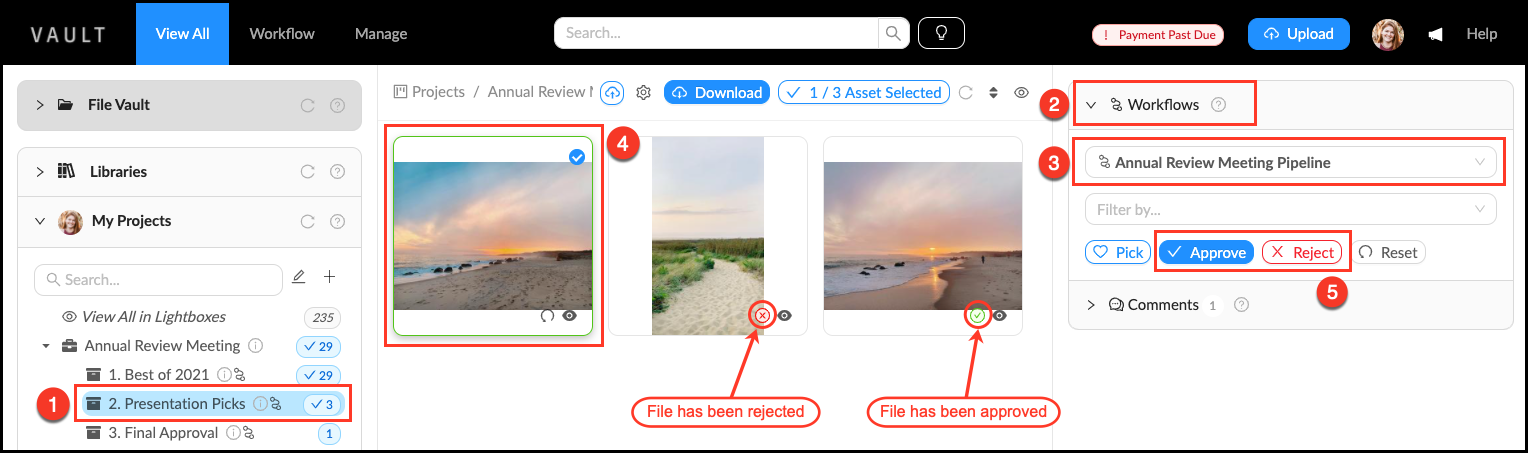
Use_a_Workflow.png


    • Related Articles

    • Create a Workflow

      Workflows are created to automatically forward files from a source container to a destination container. All member roles can create and use Workflows. They are especially helpful for forwarding assets to a container with a different audience, or in ...
    • Configuring OpenID Authorization Using GSuite

      4 years ago Updated Follow Not yet followed by anyone OpenID is an open standard of a decentralized authentication system that allows the user to create a single account for authenticating to multiple unrelated Internet resources. To set up OpenID ...
    • Connect Google Drive to Mediagraph Using SFTP

      If you have a large number of files stored in Google Drive, you can move them to Mediagraph quickly and securely with Mountain Duck. Mountain Duck is an application that lets you add cloud storage shortcuts to your computer's file browser (e.g. ...
    • Using the Tag Tree to Filter Assets

      You can use the Tag Tree to easily filter assets based on what tags are (or aren’t) applied to them. Clicking the Tag Count will automatically apply that filter to the file set you are viewing, only displaying files that have this tag. Mousing over ...
    • Connect Your Canva Account to Mediagraph

      The free Mediagraph-Canva integration allows you to access your entire Mediagraph library directly within Canva's design interface. This integration streamlines your creative workflow by eliminating the need to download and upload assets manually, ...