Select and De-select Assets
Selecting assets in Mediagraph allows you to easily perform actions like tagging or moving on multiple items simultaneously. It also lets you see important metadata about a range of assets, including what containers they can be found in or what they have been tagged with. This information is communicated by means of the blue highlights and checkmarks throughout the left-hand side panel.
Note the difference between a Highlighted and Selected asset.
Highlighted: A single asset is visually emphasized with a blue border as you navigate, but no action can be performed until the asset is actually selected.
Selected: The asset is actively chosen, indicated by a blue checkmark. Selected assets are the ones you can perform bulk actions on.
Select an Asset
- Mouse selection:
- Single Asset: Click directly on the asset’s thumbnail. The asset will be highlighted and selected simultaneously, and you’ll see a blue checkmark in the top corner of the asset’s thumbnail.
- Multiple Assets: Hold down the Shift key, then click on the first and last asset in a range to select all items in between. Alternatively, hold the Ctrl (Windows) or Command (Mac) key and click on individual assets to select multiple non-adjacent items. You can also use the Shift key to select discontiguous ranges.
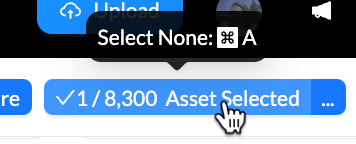
- Select All: Click the asset counter in the top right corner to Select All. Alternatively, hit Ctrl + A (Windows) or Command + A (Mac) on your computer’s keyboard to select all assets.
- Refine and edit your selection:
- Hover over the three dots to the right of the asset counter in the top right corner to see tools to refine and edit your selection. This includes an option to Invert Selection, an option to View Selected/Unselected assets only, an Undo Select/Deselect button and more.
- Hover over the three dots to the right of the asset counter in the top right corner to see tools to refine and edit your selection. This includes an option to Invert Selection, an option to View Selected/Unselected assets only, an Undo Select/Deselect button and more.
De-select an Asset
- Single Asset: Click directly on the asset’s thumbnail again. You’ll see the blue checkmark disappear from the top corner of the asset’s thumbnail.
- All Assets: Click the asset counter in the top right corner to deselect all. You can undo the deselect at any time. Alternatively, hit Ctrl + A (Windows) or Command + A (Mac) on your computer’s keyboard to deselect all assets.
Tips
- Quick Selection: Use the Shift key to quickly select a range of assets without having to click each one individually. Mediagraph supports discontiguous shift selection.
- Review Selections: Before performing a bulk action, always review the selection to ensure no assets have been accidentally included.
- Quick Selection: Use the Shift key to quickly select a range of assets without having to click each one individually. Mediagraph supports discontiguous shift selection.
- Review Selections: Before performing a bulk action, always review the selection to ensure no assets have been accidentally included.