Run auto-tagging on existing files
Enabling auto tagging will send all newly uploaded image files out for auto tagging with Amazon Rekognition service. Enabling auto tagging will NOT run auto tagging on previously uploaded assets.
Follow these steps to run auto tagging on existing files.
Run auto-tagging on multiple existing files
- Select assets you wish to auto tag.
- Mouse over the Action Menu and click "Add Metadata...".
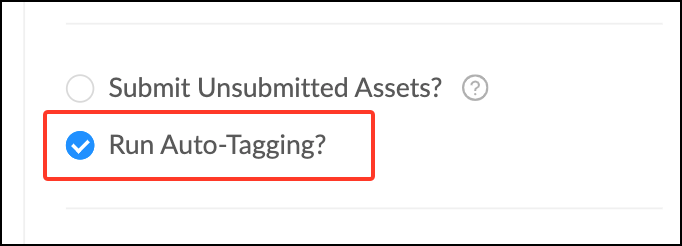
- Check the box "Run Auto Tagging". Click "Submit".
- MediaGraph will now run auto tagging on these assets.
Auto tagging can take a little while to complete, especially for large groups of images. This is an operation that runs in the background. You can monitor the progress by looking at the Auto Tagging sub-panel in the Filter panel. It will show you how many files have been processed.
Run auto-tagging on an individual file
- Double click on an asset to open the Asset Detail View.
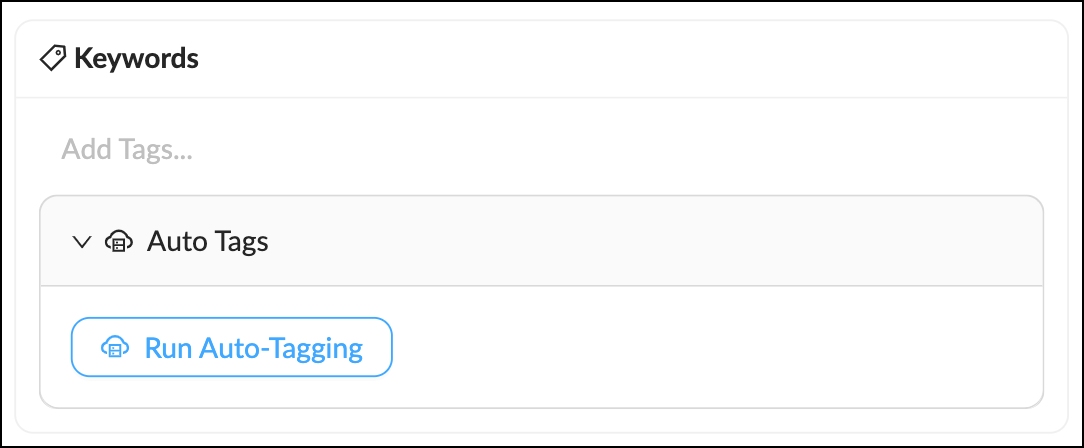
- Open the "Describe" tab. Under "Keywords" click to open the tab "Auto Tags".
- Click the "Run Auto Tagging" button. MediaGraph will now run auto tagging on this asset.
- MediaGraph will display all auto tags that have over 80% confidence. If the tag is correct: mouse over the tag and click "Apply Tag". If the tag is inaccurate: Click the "x" next to the tag to remove it.
- Changes save automatically.
Related Articles
Getting Started with Face Tagging
Welcome to MediagraphAI face tagging! We think you’ll find it does a very good job of identifying faces. It should save you a lot of time, and help you discover hidden content in your media collection. The guide here is a work in progress. We’re ...
Enable auto tagging
Enabling auto tagging will send all newly uploaded image files out for auto tagging with Amazon Rekognition service. Rekognition is most helpful for images with no previous keywording, and which have widely varied general subject matter. Only Admins ...
Face Tagging - Refining the Training
You should find that MediagraphAI does a very good job of finding and tagging faces. There may be some instances where a face is not recognized (false negatives) or where some other person is wrongly included (false positives. Here are some ways to ...
Add Files to a Collection
A Collection can be expanded or updated by adding more assets at any time. There are multiple ways to add files Collections. Drag and Drop - Simply drag selected files from the workspace onto a Collection to add them. Using the Action menu - ...
Converting auto tags to intentional tags
The Auto tags can be useful as a tagging aid. You can filter on relevant tags and add them as “real” Auto tags are NOT the same as manually created tags. Auto tags are factored into search results but are not visible to general members (this is a ...