Enable Uploads into a Lightbox
Depending on your user role and account settings, you may be able to enable uploads directly into Lightboxes. If you have permission to enable uploads into a Lightbox you can set requirements members must meet before they are able to submit assets (i.e. require users to select from a list of suggested tags or choose a rights package).
- Suggested Tags - To help keep tagging robust and consistent, you can create a list of suggested tags for users to choose from when uploading files into a Lightbox.
- Required Tags - To help keep track of uploaded files, you can require users to add at least one tag to your uploaded files. You can supply a set of tags users are required to choose from, or create tags that are automatically applied to all Lightbox uploads.
- A Permission Statement - To help clarify what uploaded files can be used for, you can require users to choose a Usage Rights statement to apply to the files. This can be optional or required.
Follow the steps below to enable member uploads into a Lightbox or Project.
Enable Lightbox Uploads
- Mouse over the
Info pop-over next to the desired Lightbox.
- Click
to enter Lightbox management.
- Click the tab Uploads.
- Check the box Enable Contributions for all Lightbox Members. You have now enabled uploads for this Lightbox.
- You can click Update now, or set custom upload requirements. Continue reading to learn about the different settings for an upload request.
Customizing a Contribution Request
1. Add some information to tell members what you want them to upload.
- Check the box to feature the request on the Upload Page.
- Create a direct contribution link to send to members
Automatic tags will be applied to all Group member uploads. Enter automatic tags in the field under "Add these tags to all Group uploads". Users will not see an option to apply these tags, it will happen automatically.
Creator Tags
Check the box "Require Creator Tag" to require members to apply a creator tag upon upload. Users will not be able to upload files until they tag a creator.
Tag Suggesters
Tag Suggesters keep tagging consistent for member uploads. A Tag Suggester is a cluster of related tags (ex. Animals: Cow, Pig, Chicken, Dog, Cat) that you want to be easily accessible to users upon upload. Follow these steps to use tag suggesters:
- Check the box "Enable Tag Suggesters".
- Use the dropdown menu "Select Existing" to select from existing Tag Suggesters.
- Or create a new Tag Suggester in Group management: Click the tab "Create New Tag Suggester". Give it a name and add the tags. Click + Create and Add.
- Check the box "Required" if you want to require users to select at least one tag from the Tag Suggester.
3. Create a list of Rights Packages for members to choose from.
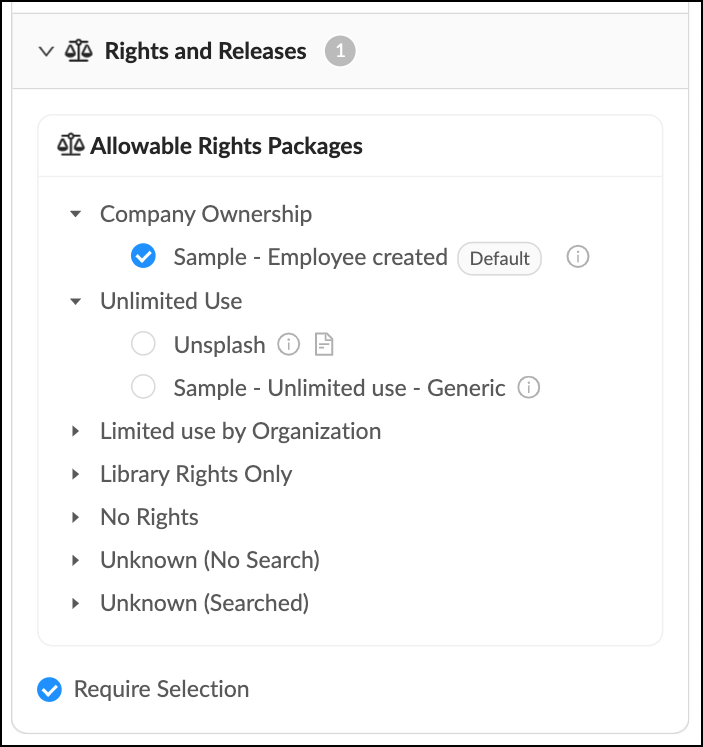
Check the box if you would like to require members to select a Rights Package
- Check the box "Enable Tag Suggesters".
- Use the dropdown menu "Select Existing" to select from existing Tag Suggesters.
- Or create a new Tag Suggester in Group management: Click the tab "Create New Tag Suggester". Give it a name and add the tags. Click + Create and Add.
- Check the box "Required" if you want to require users to select at least one tag from the Tag Suggester.