Edit Group permissions

Edit Group permissions

If you find that you need to add or modify a Group's permissions levels you can edit the existing Permissions. (For instance, you may want to remove a watermark from an existing permissions level).

Add or Modify Group Permissions

  • Go to Manage > Groups and click Edit next to the desired Group.
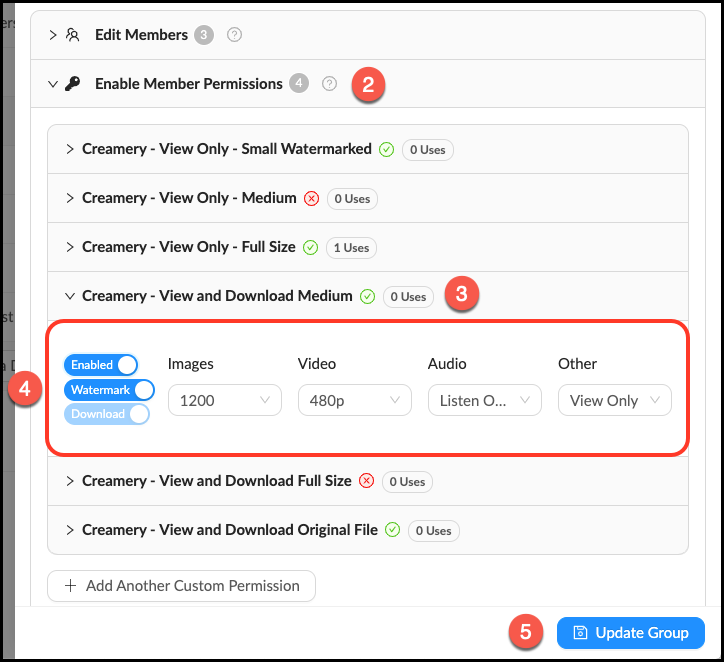
  • Click the accordion labeled Enable Member Permissions.
  • Click the accordion of the permissions level you would like to edit. There are six standard levels, but you can also create a custom permissions level.
  • Make desired changes. You can enable/disable watermarks, the ability to download assets and change the size of images users can view/download.
  • Click Update Group to save changes.

Edit Group Permissions Level.png


When editing Group Permission Levels you can choose from the six default options, or create a custom permission level to suit your Group’s needs. Follow the instructions below to create a custom permission level.

Create a custom Group permission level

  • Go to Manage > Groups and click Edit next to the desired Group.
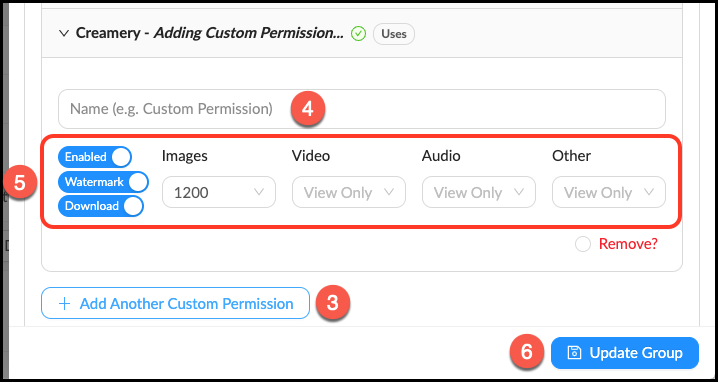
  • Click the accordion labeled Enable Member Permissions.
  • Click + Add Another Custom Permission.
  • Name your new Permission Level.
  • Select desired attributes.
  • Click Update Group to save changes.

Create Custom Permission.png


    • Related Articles

    • Understanding Group permissions

      Group permissions are applied to Collections to determine what assets Group members have access to. All Groups come with six default permissions levels to choose from. When creating a Group you can select from these default permissions, edit them or ...
    • Mediagraph permissions by Group role

      Group managers allow you to share the burden of management of the account as other departments, stakeholder groups or other sets of members are brought onboard. This chart breaks down permission by Group role. Enabled by default Can be enabled by a ...
    • Set Group permissions in an existing Collection

      Mediagraph enables you to pick which user Groups can see or download your Collections through Permissions. Follow these steps to give members permission to see or download based on their Group membership. Set Member Permissions in an Existing ...
    • Group overview

      Groups are the heart of permission control in Mediagraph. They connect members to assets through permissions that are applied to collections. All accounts come populated with two “automatic” groups: All Members and Public. These are useful for ...
    • Edit a Collection

      If you need to make a name change or otherwise update a Collection, you can do so by following these steps. Edit a Collection in the Library Panel Mouse over the Info pop-over next to the Collection you would like to edit. In the Info pop-over you ...