Change Default Asset Sequence in a Lightbox
Every Lightbox has its own individual sequence settings. The default sequence is the order the files are presented in when a visitor views on the Lightbox. You can sort assets by upload time, capture time, file name, file size, rating or select your own custom order. The owner of the Lightbox is the only person who can change the default sort order.
Lightbox visitors and members will also see the sort order options, and can choose to display the files according to another sequence, but only the Lightbox Owner can set a new default.
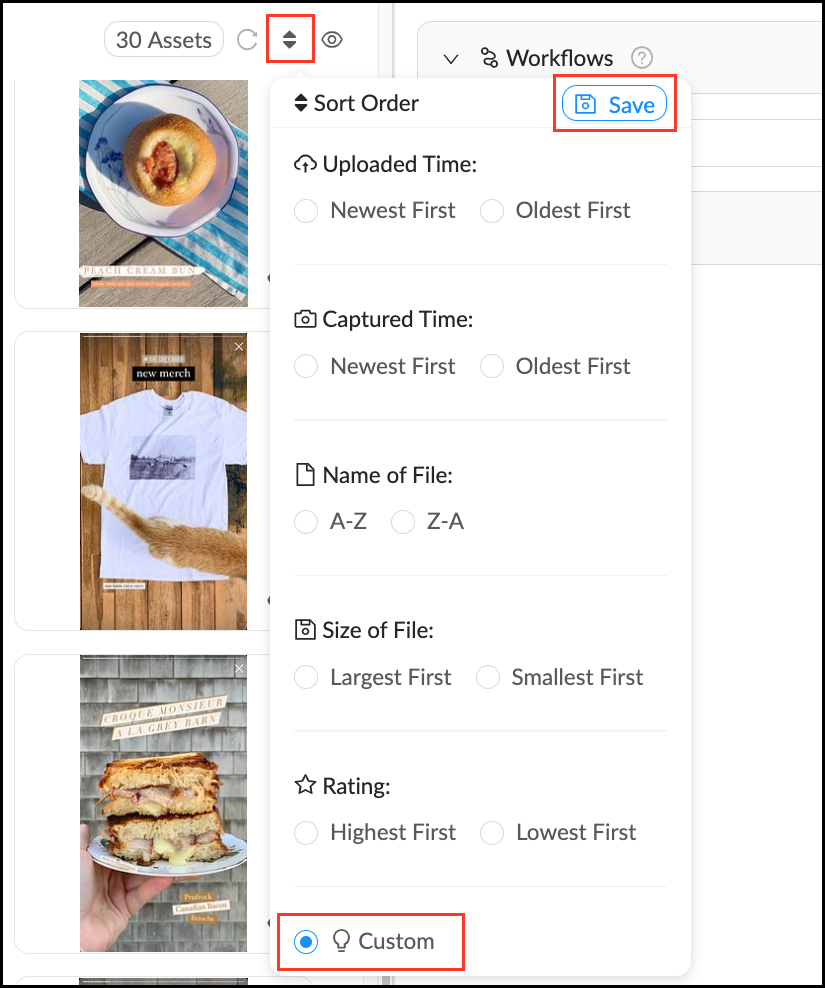
Setting default sequence in a Lightbox
- Select one of your Lightboxes.
- Mouse over the
sort order arrows in the upper right corner of the workspace. - Choose a different sort criteria.
- The Save button will appear. Click Save to set as the new default
Setting a custom sequence in a Lightbox
- Select one of your Lightboxes.
- Mouse over the
sort order arrows in the upper right corner of the workspace. - Click on Custom and hit Save.
- As you drag files to a new sequence in the Lightbox the new sequence will be saved automatically.
- Source: https://damsoftware.zendesk.com/hc/en-us/articles/4414715990932-Change-default-asset-sequence-in-a-Lightbox
Related Articles
Change Asset View Sort Order
Mediagraph defaults to sorting assets by Uploaded Time > Newest First, but there are many other ways to sort assets when viewing them in the Workspace. To change the way assets are sorted, mouse over the sort order arrows and select from the ...
Edit a Lightbox
If you need to make a name change or otherwise update a Lightbox, you can do so by following these steps. Edit a Lightbox Mouse over theInfo pop-over next to the Lightbox you would like to edit. In the Info pop-over you can: Edit a Lightbox name by ...
Delete a Lightbox
When a Lightbox is no longer needed or if you need to start over, you may want to delete it. All members can delete Lightboxes they own, but no one can delete a Lightbox they have been invited to. Deleting a Lightbox will NOT delete the assets in ...
Creating and Managing Asset Links
An authorized user can share assets and collections with colleagues or external users by creating special links. In Picvario, you can generate three types of links: Direct download link: Provides direct access to the original asset for downloading. ...
Clone a Lightbox
Cloning a Lightbox allows you to make a new copy of an existing Lightbox. You can leave the original version (and any existing connections to it) intact while making changes to the permissions, organizational structure, number of assets, or workflows ...