Apply staff permissions on a Collection

Apply staff permissions on a Collection

  • Enabling Group Tagging permissions gives those Group Taggers the ability to create and apply tags to all assets in that Collection. 
  • Enabling Group Library Manager permissions on a Collection gives those Group Library Managers control over Collection structure, permissions and assets.
  • There is not an option to specifically apply Group Content Manager permissions. Enabling Group Library Manager permissions will grant those Group Content Managers control over Collection structure, permissions and assets, but will not grant any additional access to the File Vault.

We do not recommend giving one Group's staff managing permissions over another Group's Library. Instead, we recommend making the user a Global Library Manager or adding them to the other Group as a Library Manager. 

Global staff roles have c

This is generally reserved for a Groups "Home" Collection. In order to enable admins in a Collection you must enable Group Managers

Follow the steps below to enable Group staff permissions on an existing Collection.

Apply staff permissions in a Collection

  • Locate the Collection and mouse over the Info_Popup.pngInfo pop-over next to its name.
  • Click the Manage_Button.pngbutton to enter the Manage Panel.
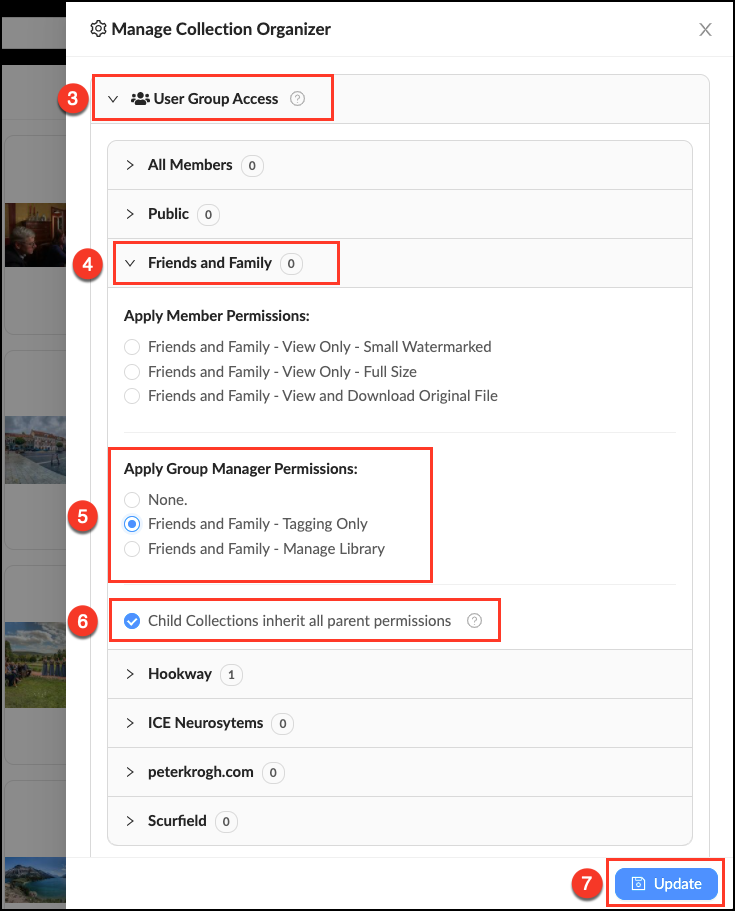
  • Click the accordion labeled User Group Access (all groups within your organization are listed here).
  • Click the tab of the Group you’d like to give managing permissions to.
  • Under Apply Group Manager Permission check the box of the admin permission you would like to enable. Note: selecting "Manage Library" will also apply "Tagging" permissions.
  • Confirm that Child Collections Inherit is checked.
  • Click Update to save changes.

Set_Admin_Permissions.png


    • Related Articles

    • View and Download Permissions for Collections

      Mediagraph enables you to pick which user Groups can see or download your Collections through Permissions. Permissions allow you to control access to assets according to a person’s Group membership. Access permissions are created in the Group Manager ...
    • Understanding Group permissions

      Group permissions are applied to Collections to determine what assets Group members have access to. All Groups come with six default permissions levels to choose from. When creating a Group you can select from these default permissions, edit them or ...
    • Set Group permissions in an existing Collection

      Mediagraph enables you to pick which user Groups can see or download your Collections through Permissions. Follow these steps to give members permission to see or download based on their Group membership. Set Member Permissions in an Existing ...
    • Permissions by Role

      Admin Content Manager Library Manager Tagger Member Upload assets to the File Vault Upload assets to Lightboxes Duplicate Folders to Collections Manage all Library Collections View Sandbox Collections View NSFW content Enable auto-tagging Edit ...
    • View and Download Permissions for Collections

      Mediagraph enables you to pick which user Groups can see or download your Collections through Permissions. Permissions allow you to control access to assets according to a person’s Group membership. Access permissions are created in the Group Manager ...