Add a Tag to the Tag Tree
There are several ways you can add a tag to the Tag Tree. The goal is for it to be easy to add tags to the Tag Tree when you are managing the tag list, working in the tag tree or browsing assets.
Add a Sub-Tag
Adding a sub-tag is a quick way to add tags to the Tag Tree without entering the Manage tab.
- Mouse over the
 info pop-over next to the parent tag you would like your sub-tag to belong to.
 - In the info pop-over click "Add Sub-Tag".
- Enter the name of the Tag you would like to add and select whether it is a Keyword, Event or Person. Note: You can create a completely new tag, or write in the name of an existing tag and MediaGraph will automatically add the existing tag to the Tag Tree.
- Click "Create". The tag will now be in the Tag Tree under the parent tag.

Add a Tag from the Keyword Tag List
Follow these instructions to add a Tag to the Tag Tree from the Manage tab.
- Go to the "Manage" tab.
- Select "Keyword Tag List" from the sidebar menu.
- Select the tags you would like to add to the Tag Tree.
- Click "Bulk Add 2 To Taxonomy". Click "OK".
- These tags will appear in the Tag Tree as a top-level Tag. Enter Edit Mode to drag the new tags to the desired location in the Tag Tree.
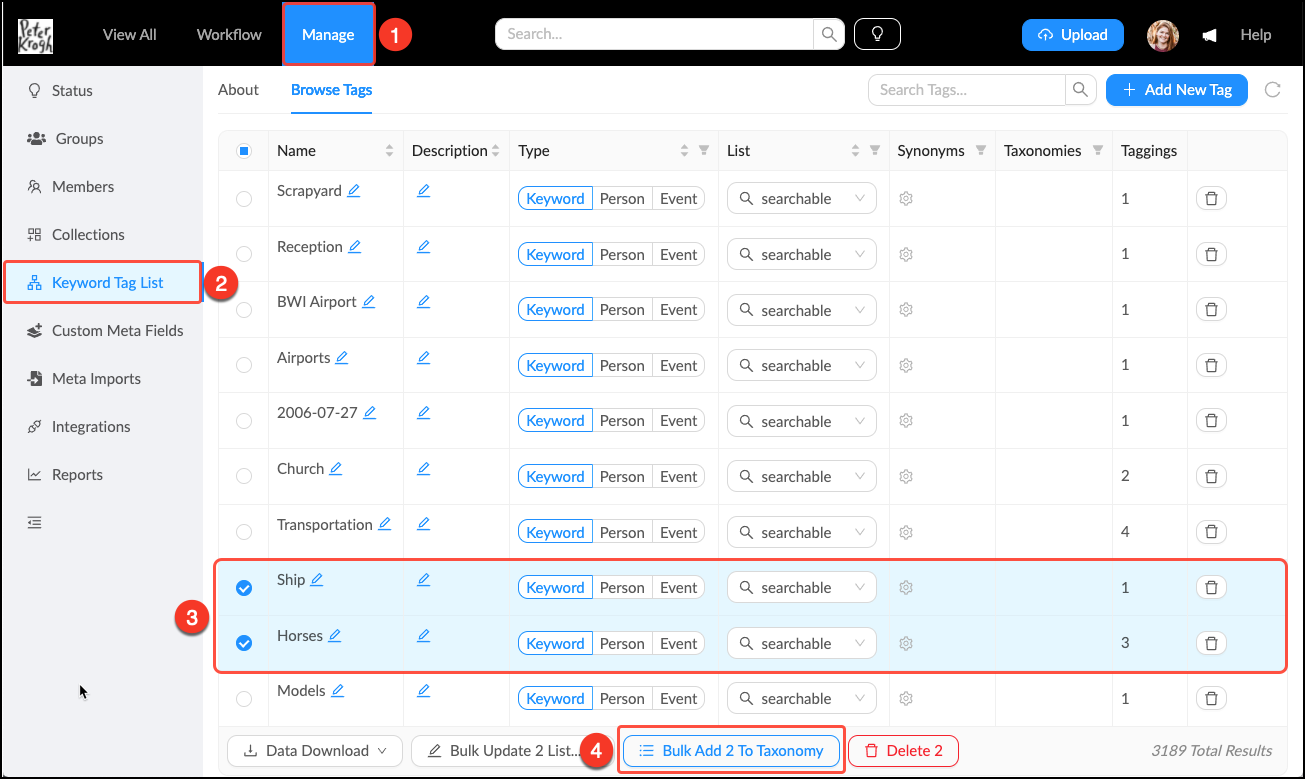
You can add tags to the Tag Tree from the management area.
Add a Tag from the Tag Info Pop-Over
Follow these steps to add a tag to the Tag Tree when you are browsing assets in the Workspace.
- Mouse over the
 eye in the lower right corner of an asset.
 - Mouse over the tag you would like to add to the Tag Tree.
- This will open the Tag Info Pop-Over. Click "Add To Taxonomy".
- Click "OK".
- The tag will appear in the Tag Tree as a top-level Tag. Enter Edit Mode to drag the new tags to the desired location in the Tag Tree.
